Help manual
Everything Nule does, in the order you'd meet it. Screenshots are from the live app.
1. Getting started
Sign up and pick a plan on the website, then download the app and sign in with the same email. The app is on the App Store and Google Play. There is no separate app account to create.
For a screen-by-screen walkthrough of your first day, see Getting started.
Tell Nule how you're set up
Go to More → Business and set your business type. This controls which tax sections appear in the menu, so you don't spend time looking at filings that don't apply to you.
- Sole trader. You trade in your own name and file Self-Assessment.
- Partnership. Two or more people in business together. Each partner files their own Self-Assessment for their share.
- Limited company. Registered at Companies House, files Corporation Tax rather than Self-Assessment. Corporation Tax filing is on the roadmap. Everything else in Nule works the same way.
VAT is separate from all of that. Anyone can be VAT registered. Adding your VAT number on the same Business screen is what makes the VAT Return section appear in the menu.
While you are on that screen, fill in your business name, address, phone and UTR. These print on your invoices, so it is worth doing once, properly, before you send the first one.
Set your rates
In Settings, set your default hourly rate and how many hours you count as a working day. Nule uses the day length when it converts between days and hours on quotes, so if you work 10-hour days, say so. Otherwise a "3 day" quote will price at 24 hours instead of 30.
Choose your bottom bar
The bar at the bottom of the app has five slots. Home and Insights are fixed at either end. The three in the middle are yours. Tap More, find the section you want, and tap "Add to bar". If all three slots are full, remove one first. "Restore default tabs" puts back Appointments, Quotes and Jobs.
Everything stays reachable from More whether it is on the bar or not, so there is no harm in experimenting.
2. Clients
A client record holds the name, phone, email and address, plus notes. The notes field is the useful one: gate codes, where the stopcock is, which neighbour holds a key, who to ring if nobody answers.
You can create a client from the Clients screen, or on the fly while you are writing a quote. Quotes, jobs and invoices all point back to the same client record, so correcting a phone number once fixes it everywhere.
Two fields matter later on:
- Address. Invoices need the customer's address on them to be valid in the UK. Nule will warn you before sending if it is missing, and let you send anyway if you have agreed otherwise with the customer.
- CIS. If the client is a main contractor who deducts CIS from your payments, mark them up here. See section 14.
3. Quotes
A quote is what the customer sees before any work happens. Start one from the Quotes screen with the orange + button.
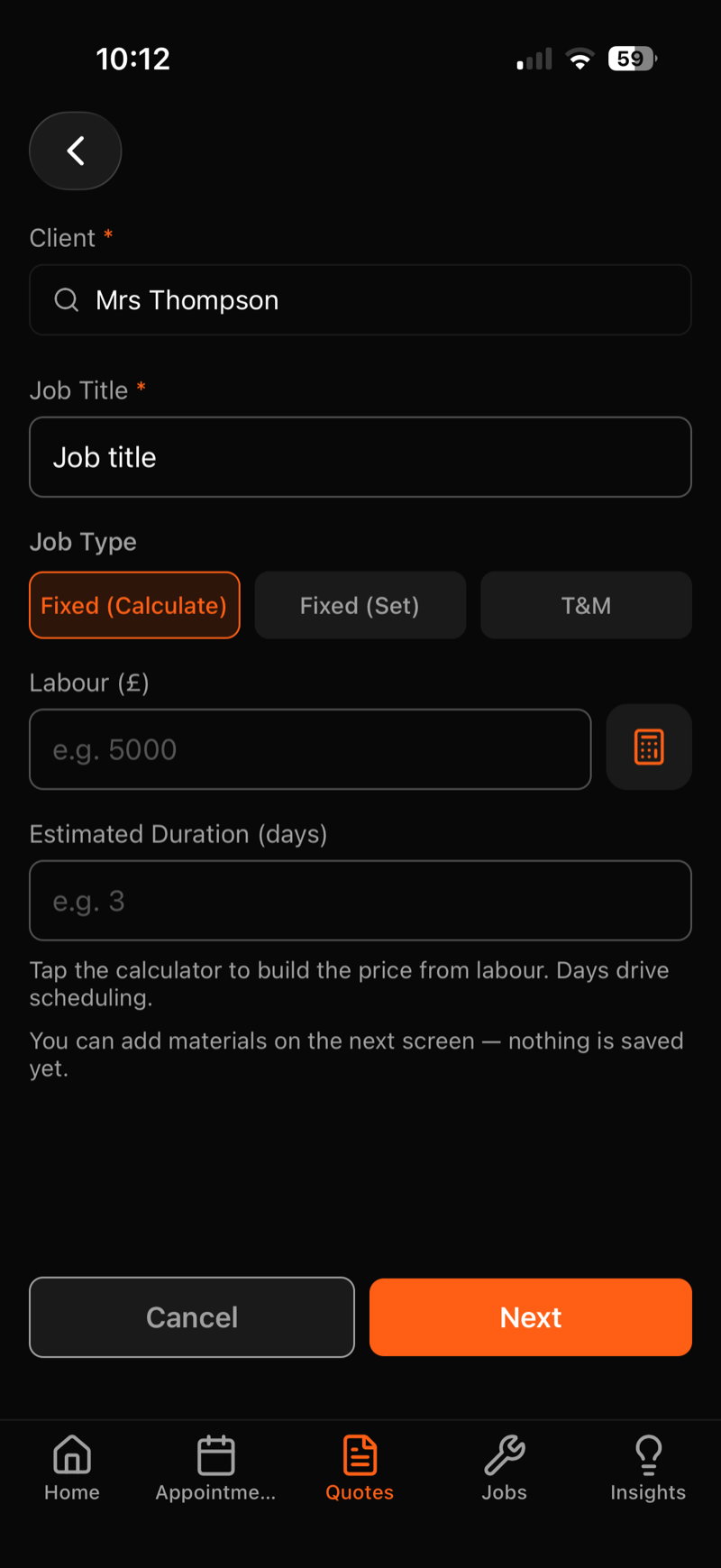
Picking a job type
This is the one decision worth getting right, because it changes how the total is calculated for the rest of the job's life.
- Fixed (Calculate). You enter a labour price and Nule adds materials on top. Use this when you are building the number up from its parts and you want materials to move the total.
- Fixed (Set). You type the final price the customer pays, and that is the total. You can still record materials against the job, and they still count towards your costs and margin, but they do not change what the customer is charged. Use this when you have quoted a round number.
- T&M. Time and materials. The total is hours worked at your rate, plus materials. Use it when the scope genuinely is not known up front.
The calculator button next to the Labour field builds a price from a day rate and a number of days if you would rather work that way round. Estimated duration in days is what schedules the job in your diary later.
Building the quote out
Step two is where you add detail:
- Materials. Name, unit cost, quantity. Start typing and Nule suggests things you have bought before, with the price you last paid.
- External costs. Money going to a third party rather than a supplier: skip hire, scaffolding, a specialist you are subbing part of the work to. Kept separate from materials so your margin figures stay honest.
- Optional extras. Upgrades the customer can take or leave, each with a price to them and a cost to you. They sit on the quote as options and only count towards the total when accepted.
- Buffer. A percentage on top for the things that always come up. You choose whether the customer sees it as a line or whether it is folded into the price.
Templates save a whole set of materials and a typical duration under one name. If you fit the same style of bathroom every few weeks, build it once as a template and start from there.
Sending it
Tap the menu on the quote and choose to view or send the PDF. It goes out through your own mail app, so the customer sees it from your address and any reply comes back to you. The quote moves to Sent when you send it.
Accepted quotes are locked. Once you accept a quote it stops being editable, because it is the record of what the customer agreed to. If you need to change it before work starts, revert it to draft first, edit, then accept again. The job's price stays editable separately, which is where extra work and revised bills belong.
4. Jobs
Accepting a quote turns it into a job and carries across the client, address, price, materials and external costs. You can also create a job directly from the Jobs screen for work that never needed a quote.
Jobs move through six states: Accepted, In Progress, Paused, Completed, Invoiced, Paid. Pause is there for jobs waiting on a part or a decision, so they drop out of your active list without being marked finished.
Starting a job
Tap Start Job. Nule asks for a start date, creates the diary appointment, and checks the materials list against your inventory. If you already have some of what the job needs sitting in the van from a previous job, it offers to take them from stock rather than have you buy them again.
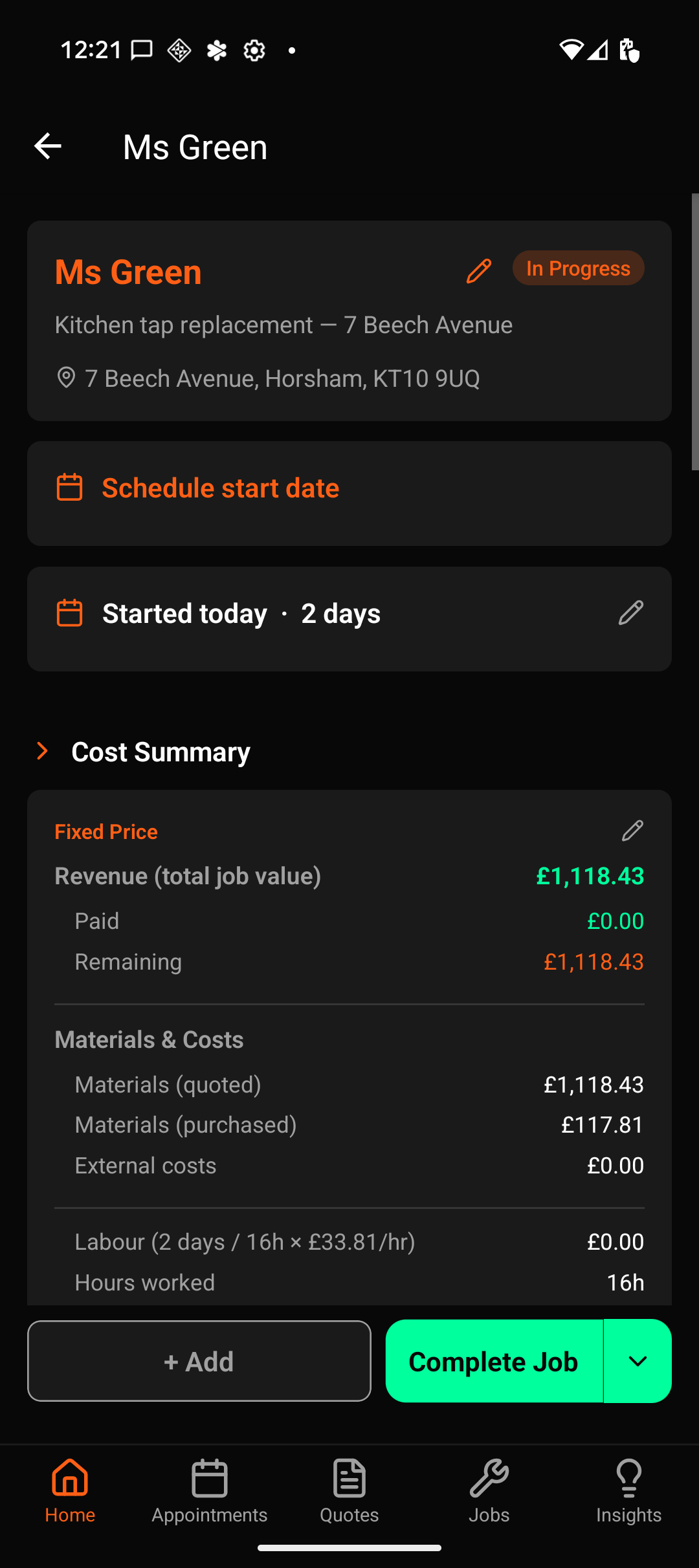
What the Cost Summary tells you
This card is the heart of the job screen. Reading down it:
- Revenue is the total job value, and beneath it what has been paid and what is still outstanding.
- Materials (quoted) against Materials (purchased) shows estimate against reality. A gap here early is the first sign a job is drifting.
- External costs are your third-party spend.
- Labour shows the days and hours at your rate, with hours worked underneath.
Everything on the job screen is live. Log an expense at the merchant's counter and the summary has moved by the time you are back in the van.
Other things on the job
Further down are hours worked, materials, external costs, other receipts, payments received, notes and a log. The log is written by Nule, not you: it records status changes and edits, so if you cannot remember when a job got rescheduled, it is in there.
Notes are yours. Markdown works if you like it, plain text is fine.
5. Materials and inventory
Materials on a quote are an estimate. When the quote becomes a job they are copied across, and from then on they track what actually happened rather than what you guessed.
Marking materials purchased
When you buy something, mark it purchased on the job. Nule records the expense at the same moment, which is the point: your job costing and your bookkeeping come from the same action, so they cannot drift apart. Change the quantity or price later and the expense is adjusted to match.
Inventory
Leftovers do not disappear. When you complete a job and say you bought five and used three, the other two go into inventory as a batch at the price you paid. Next time a job needs that item, Nule offers it from stock at the start of the job.
Taking stock from inventory does not create a new expense, because you already paid for it on the earlier job. That keeps you from counting the same money twice.
The materials catalogue
Under More → Materials is your price list. Save the things you buy regularly with the price you usually pay, and they autocomplete on every quote and job afterwards. It is worth spending twenty minutes adding your top thirty items when you start.
Job templates
Under More → Job Templates you can save a whole job's worth of materials and a typical duration under one name. Applying a template to a quote drops all of it in at once.
6. Hours, mileage and expenses
Hours
Log hours against a job as you go, or add them in one go when you finish. On a T&M job the hours are the price, so they need to be right. On a fixed-price job they do not change what the customer pays, but they are what tells you afterwards whether the price was any good. It is worth logging them either way.
Mileage
Log a trip with the miles and, if it relates to one, the job. Nule applies HMRC's approved mileage rates: the higher rate for your first 10,000 business miles in the tax year and the lower rate after that. The switch happens automatically when you cross 10,000, which is easy to get wrong by hand.
Expenses and receipts
Expenses can sit against a job or stand on their own for things like insurance, fuel or tools. Photograph the receipt and Nule reads the supplier and the amount off it, so most of the time you are checking a figure rather than typing one.
For expenses on a job you also choose whether the cost is billed to the customer or absorbed by you. Billed costs appear on the invoice. Absorbed costs still count against your profit on the job and still count as a business expense for tax, they just are not passed on.
7. Completing a job
Tap Complete Job and Nule opens the Review Job screen. This is the one screen worth slowing down on, because it is where estimates become facts.
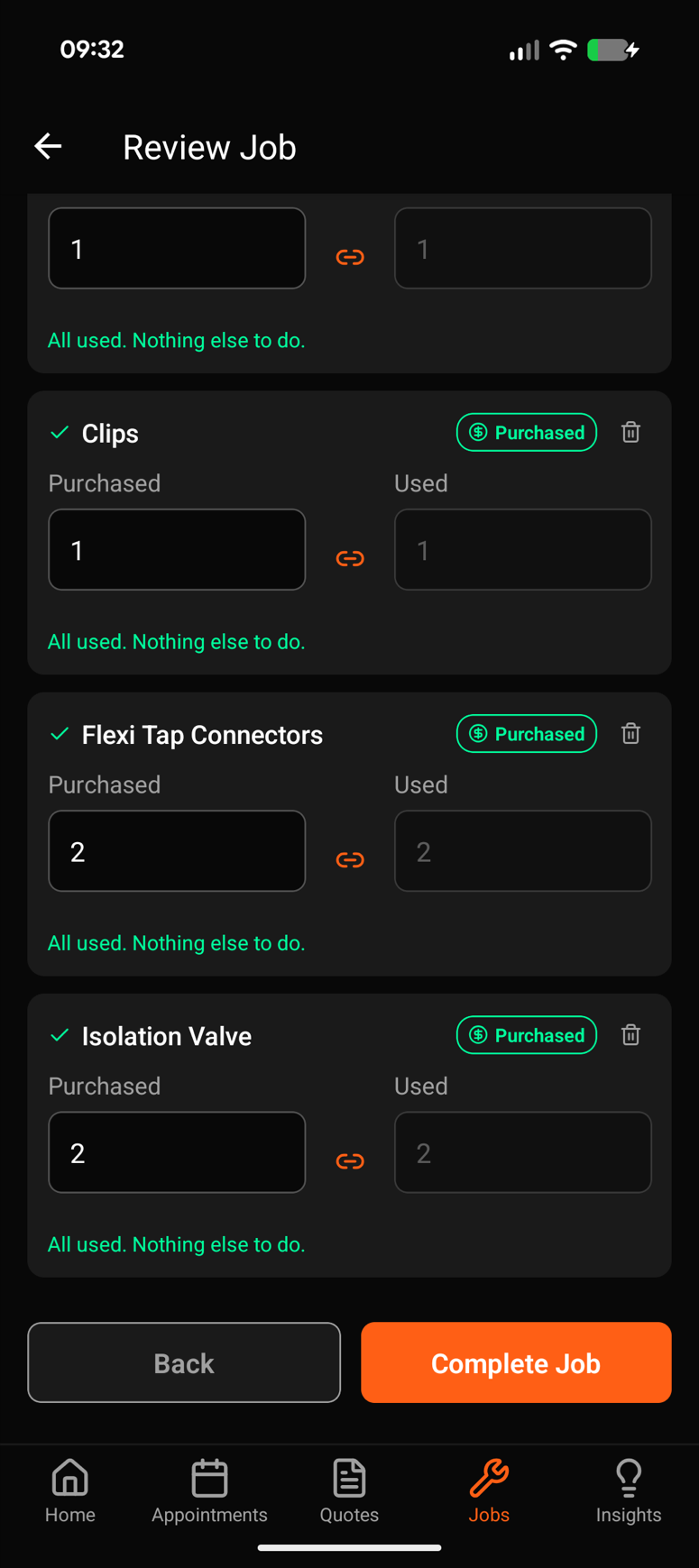
First you confirm labour. Then, for each material, you enter two numbers: how many you purchased and how many you used. Most of the time those match and the row confirms itself with "All used. Nothing else to do."
When they do not match, Nule does the tidying:
- Bought more than you used, and the difference goes back into inventory for next time.
- Used something the customer supplied, and there is a shortcut for that which records the usage without creating an expense.
- Never bought it and never used it, and the row is removed. Nule lists which ones it dropped so nothing vanishes quietly.
Last come external costs and any receipts you have not yet decided about, where you say whether each one is billed on or absorbed.
Reopening is safe. If you complete a job and then realise something is missing, reopen it. That clears the completion and puts the job back to In Progress. It does not touch your materials, hours or expenses, so nothing you recorded is lost.
8. Invoices and getting paid
Once a job is completed, Generate Invoice appears on it. Nule builds the lines from the job itself, in the shape that matches how you priced it: a T&M job invoices hours and materials, a Fixed (Set) job invoices the agreed price as one line.
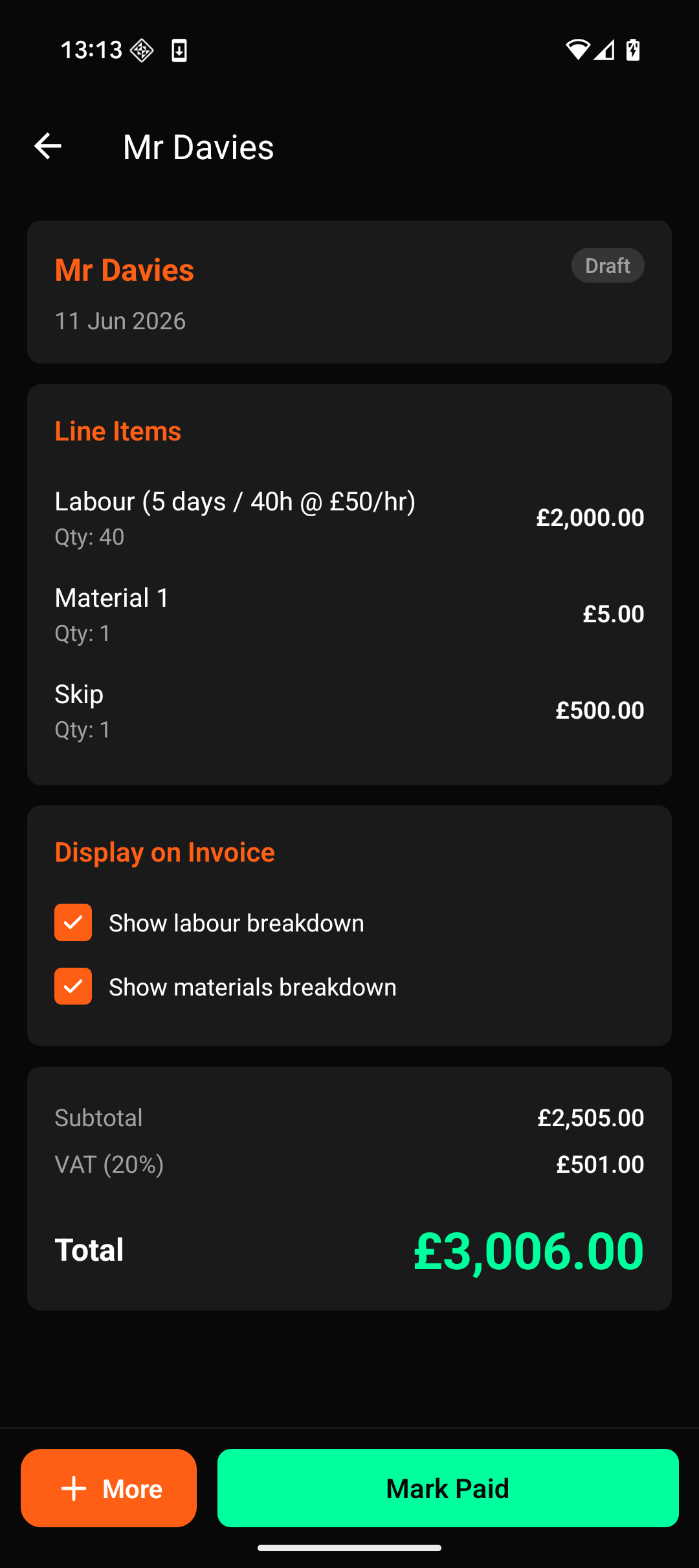
Deciding what the customer sees
The two toggles under Display on Invoice control the level of detail. Turn them off and labour and materials collapse into single lines, which is often what you want on a fixed-price job where the breakdown is your business rather than theirs. Turn them on and the customer sees the itemised version. The total is the same either way.
You can add a discount with a reason, and choose whether the reason is printed.
Sending and chasing
Email the PDF from the app, or share it however you like. When the money arrives, tap Mark Paid, and the job moves to Paid.
Anything unpaid shows on your Home screen, and there is an insight for unpaid invoices that sorts them by due date so the oldest is at the top.
VAT on invoices
If you are VAT registered, VAT is applied at your rate and shown as its own line. If the domestic reverse charge applies, no VAT is charged and the invoice carries the required wording instead. See CIS for when that happens.
9. Follow-up work
You are on site finishing a bathroom and you notice the radiator valve in the next room is weeping. The customer mentions they have been meaning to get an outside tap fitted. Two weeks later you cannot remember either conversation.
Follow-up work is where that goes. It sits against the job and the customer it came from, so when you get round to pricing it you already have the address, the contact details and your own note about what you saw.
Where to find it
The Follow-up Work card appears on a job once you have completed it, and on that job's invoice. It does not appear on a job that is still in progress. While a job is running, extra work the customer asks for belongs on that job as a change of scope, not as a follow-up.
Recording one
- Tap Add follow-up work on the completed job or its invoice.
- Write what you saw. Be specific, because this text becomes the description on the quote. "Replace leaking radiator valve in back bedroom" is more use in a fortnight than "valve".
- Choose one of two buttons. Save Follow-up records the note and stops there. Create Draft Quote records the note and raises a draft quote at the same time.
The draft quote arrives with the customer, the property address and your note already filled in. It takes the title of the job it came from, with Follow-up work marked underneath in orange, so it is easy to spot in a list of quotes without being hard to identify.
It opens with a Labour row at the top reading "Not set". Tap it for the same calculator you get on a normal quote, work out the price from hours and a rate, and it fills in the labour figure and the duration. Add materials underneath, then send it like any other quote. Nothing reaches the customer until you send it.
If you saved a note without quoting it, the row keeps a Create Quote button for whenever you are ready.
The Follow-ups screen
Everything you have recorded lives under More → Follow-ups, in three tabs:
- New. Noted but not yet quoted. This is your to-do list.
- In Progress. Quoted, sent or accepted, with the value alongside.
- Closed. Completed, declined by the customer, or dismissed by you.
Each row shows the customer, the original job, the address, your note and the date. Search covers all of it. Tap a row to jump to the job it came from. Tap "Add to bar" on the More screen if you want Follow-ups permanently on the bottom bar.
You never set the status yourself. A follow-up works out its own state from the quote and job behind it. It is New until you quote it, Draft Quote once the quote exists, Awaiting Approval when you send it, Accepted when the customer agrees, and Completed when the resulting job has been invoiced. If you revert that quote to draft, the follow-up goes back to matching it. There is nothing to keep in step by hand and nothing to forget to update.
Linked jobs
When a follow-up quote is accepted it becomes a job like any other, and the two jobs link to each other. The new job shows "Follow-up From" at the top with a link back. The original job lists it under Related Jobs. Over a few years with the same customer that builds a history you can actually walk: bathroom installation, then the radiator replacement it led to, then the boiler service after that.
When the customer says no
Tap the row and dismiss it. The note stays on the job for reference, and it still counts towards your follow-up rate, because the job did generate the opportunity even though the customer did not take it. You can restore a dismissed follow-up later.
Press and hold a row to delete it instead. That removes it completely and takes it out of your figures, which is what you want for a duplicate or a typo. Neither dismissing nor deleting touches a quote or job that has already been created from it.
10. Business insights
The Insights tab is a grid of questions about your own numbers. Tap one for the answer and swipe sideways to move between them. They are worked out from your ledger on your own device.
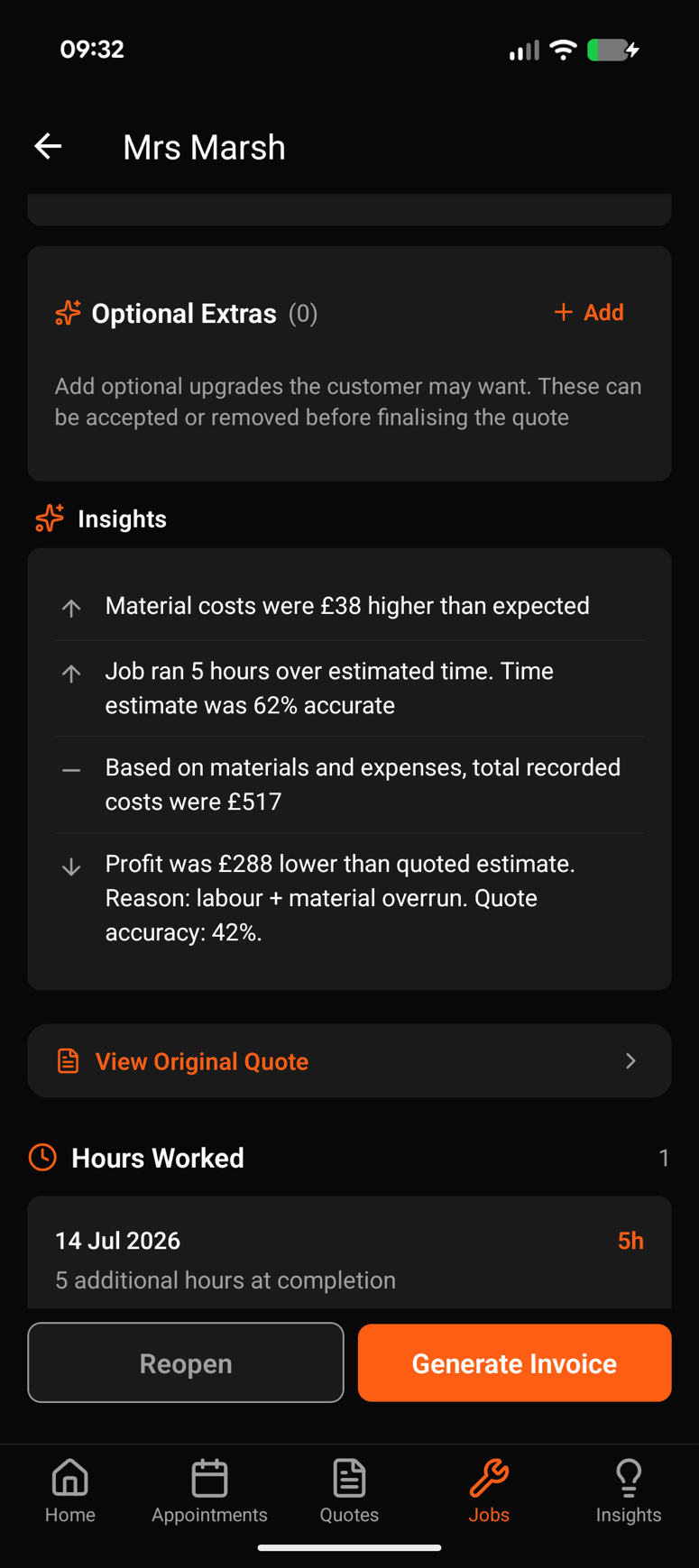
The per-job version above appears on every job once you complete it. It compares what you quoted against what the job actually cost, including how accurate your time estimate turned out to be. On the job pictured, the quote was 42% accurate and the profit came in £288 under, with the reason given as labour and material overrun.
What the tabs cover
Across the whole business, the grid answers questions like where you are losing money, which jobs are most profitable, which customers give you repeat work, which suppliers you spend most with, how many of your quotes get accepted, and what your average material cost per job is.
Four are about follow-up work: what it has earned you, how often a finished job leads to more work, which jobs generate the most valuable follow-ups, and what an average follow-up is worth.
Why some are empty
Several insights hold back until there is enough history to say something meaningful. Profitability comparisons want three completed jobs, averages want five, and the loss-making analysis waits for eight. Until then the card tells you what it is waiting for, rather than showing a figure worked out from too little history.
11. VAT return
If you are VAT registered, HMRC wants a return each quarter with nine numbers on it, covering your sales, your purchases and the VAT on both. Nule works them out from the transactions you have already recorded, so there is nothing extra to type in.
Open More → VAT Return, check the period, and read down the nine boxes. Each one can be expanded to see which transactions went into it, which is the quickest way to spot something filed under the wrong category.
Save Draft freezes the figures for that period so they stop moving while you keep logging day-to-day work. You can recalculate at any point before you file. Once you are happy, file them using one of the routes in section 13.
If your accountant handles VAT, set "Files VAT" to "My accountant" on the Accountant screen. The VAT screen then offers to send them the figures and a supporting CSV instead.
12. MTD for Income Tax
Making Tax Digital for Income Tax is HMRC's quarterly reporting system for sole traders and landlords. It becomes mandatory on 6 April 2026 for anyone with qualifying income above £50,000. That threshold is HMRC's, not ours.
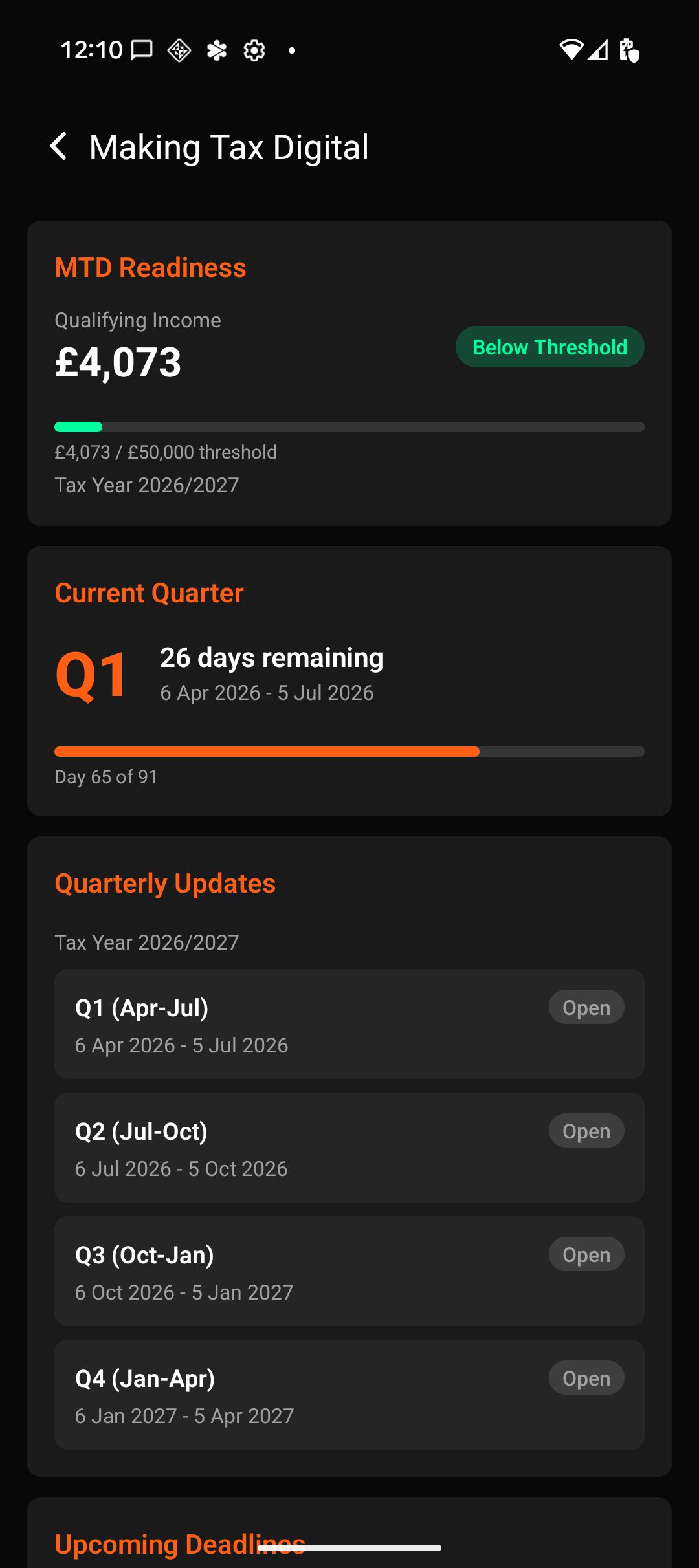
The readiness card at the top tracks your qualifying income for the tax year against the threshold, so you can see whether this applies to you yet. Below that is the current quarter with days remaining, then all four quarters of the year with their date ranges.
Each quarterly update is a snapshot of your income and allowable expenses. Nule's figures are cumulative, in line with HMRC's current approach: each update covers the tax year to date rather than just those three months.
Mark as Ready snapshots a quarter so the numbers stay put while you carry on logging. Before you do, set your National Insurance number and ITSA Business ID on the Business screen, or the submission will be incomplete.
Finding your ITSA Business ID
It is HMRC's internal reference for each self-employment you have registered. Sign in to your Government Gateway account, go to Self-Assessment, then MTD for Income Tax, and it is listed against each business. Most sole traders have exactly one. Landlords with several properties may have more.
Quarterly updates do not replace the annual Self-Assessment return. They feed into the final declaration at the end of the year.
13. Filing your figures
Nule prepares the numbers HMRC asks for: the nine VAT boxes, and your quarterly income tax totals. Submitting them is the last step.
Nule can now submit to HMRC directly. HMRC granted Nule production access for VAT and Income Tax on 29 October 2026. Connect your HMRC account in the app under More → Business, then file from the VAT Return or MTD screen. The two routes below still work if you prefer to file another way.
Through your accountant
On the Accountant screen, choose a period and a format and tap Email to Accountant. Nule builds the CSV and opens your mail app with their address filled in and the file attached. This is the simplest route if someone already does your filing.
Through MTD-compatible software
Under Making Tax Digital you can no longer type VAT figures into the gov.uk website by hand. Returns have to go through MTD-compatible software. Bridging tools are the lightest option: they take figures like Nule's and submit them, without asking you to move your bookkeeping. Search gov.uk for "find software that's compatible with Making Tax Digital" for the current list.
Keep Nule open alongside whichever tool you use. The nine boxes and the quarterly summary line up with what these tools ask for.
You can also read your figures in a browser rather than on your phone. Sign in and open your tax page.
14. Construction Industry Scheme (CIS)
CIS is the tax scheme for construction subcontracting. When a contractor pays you for construction labour they hold back 20% if you are verified with HMRC, or 30% if you are not, and pay it over on your behalf. You receive the rest. HMRC treats the withheld amount as tax you have already suffered, and sets it against your bill at the end of the year.
Setting it up
Turn it on once at Business → Construction Industry Scheme by ticking "I receive CIS deductions". A CIS section then appears on every client form and every job.
- On the client. Mark each main contractor as operating CIS and set their rate. Most subcontractors are on 20%. Use 30% only if HMRC has not verified you. 0% means you hold gross payment status.
- On the job. This defaults from the client but can be overridden, which matters when the same contractor occasionally puts you on work that falls outside the scheme, such as zero-rated new-build housing.
What appears on the invoice
The invoice shows gross labour and materials, then a "Less: CIS tax to be suffered" line, then the net payable, with your UTR printed alongside so the contractor can report the deduction on their monthly CIS300 return.
Materials are excluded from the calculation. CIS applies to the labour element only, and getting this wrong is one of the more common ways subcontractors lose money.
What happens to the money
When you mark a CIS invoice paid, Nule records the gross amount as income and the withheld portion as an asset on your balance sheet. It does not reduce your profit, because it is tax paid in advance rather than a cost.
The Reports screen gives you the CIS suffered total for any period. Sole traders put that figure on the SA103 supplementary page at year end. Limited companies set it against the Corporation Tax bill.
The VAT reverse charge
If you and the contractor are both VAT registered, and they are not the end user of the work, the domestic reverse charge applies. No VAT is charged on the invoice and the customer accounts for it on their own return. Nule adds the required wording automatically when the conditions are met.
Mark a client as the end user only when they genuinely are the final consumer, such as a homeowner having their own bathroom done. Getting this wrong means charging VAT you should not have charged.
What Nule does not do
The contractor issues the monthly Payment and Deduction Statement, not you. You receive it from them. Verification with HMRC also happens through the contractor's own CIS portal rather than in the app.
15. Sending to your accountant
On the Accountant screen, pick a period, pick a format, and tap Email to Accountant. Nule generates the CSV and opens your mail app with their address pre-filled and the file attached.
- UK Multi-Section. The thorough one. Your business details, then transactions, invoices and mileage, then a summary with income and expenses net of VAT, VAT collected and paid, and the mileage allowance worked out at both rates. This is what a UK accountant wants.
- Xero, QuickBooks and Sage. Bank-statement-style CSVs for importing transactions into one of those packages.
Save your accountant's email address on that screen once and it is filled in every time afterwards. Files are generated on your phone and shared through the phone's own share sheet, so nothing routes through our servers.
16. Your data, backups and offline
Everything you record lives on your phone first. Jobs, transactions, invoices, mileage and photos are all written locally, which is why the app keeps working in a plant room with no signal or on a site with nothing but a bar of GPRS. Nothing queues up waiting for a connection.
When you are signed in and back on a connection, a backup syncs to our servers so you can restore onto a new phone. Receipt photographs stay on your device.
Data is encrypted in transit and at rest, and stored in AWS's London region. We do not sell it, and there is no third-party analytics in the app. The privacy policy has the detail.
You can take your data out at any time through the accountant exports, and you can delete your account from More → Account or by emailing us.